Logistics Settings
Logistics Settings contains system-wide configuration for the Lnder Logistics app. These settings control how the system processes live tracking, geofence checks, delivery monitoring, stoppage/deviation alerts, and notification rules during trips.
To open Logistics Settings, go to:
Home > Lnder Logistics > Logistics Settings
1. Tracking Configuration
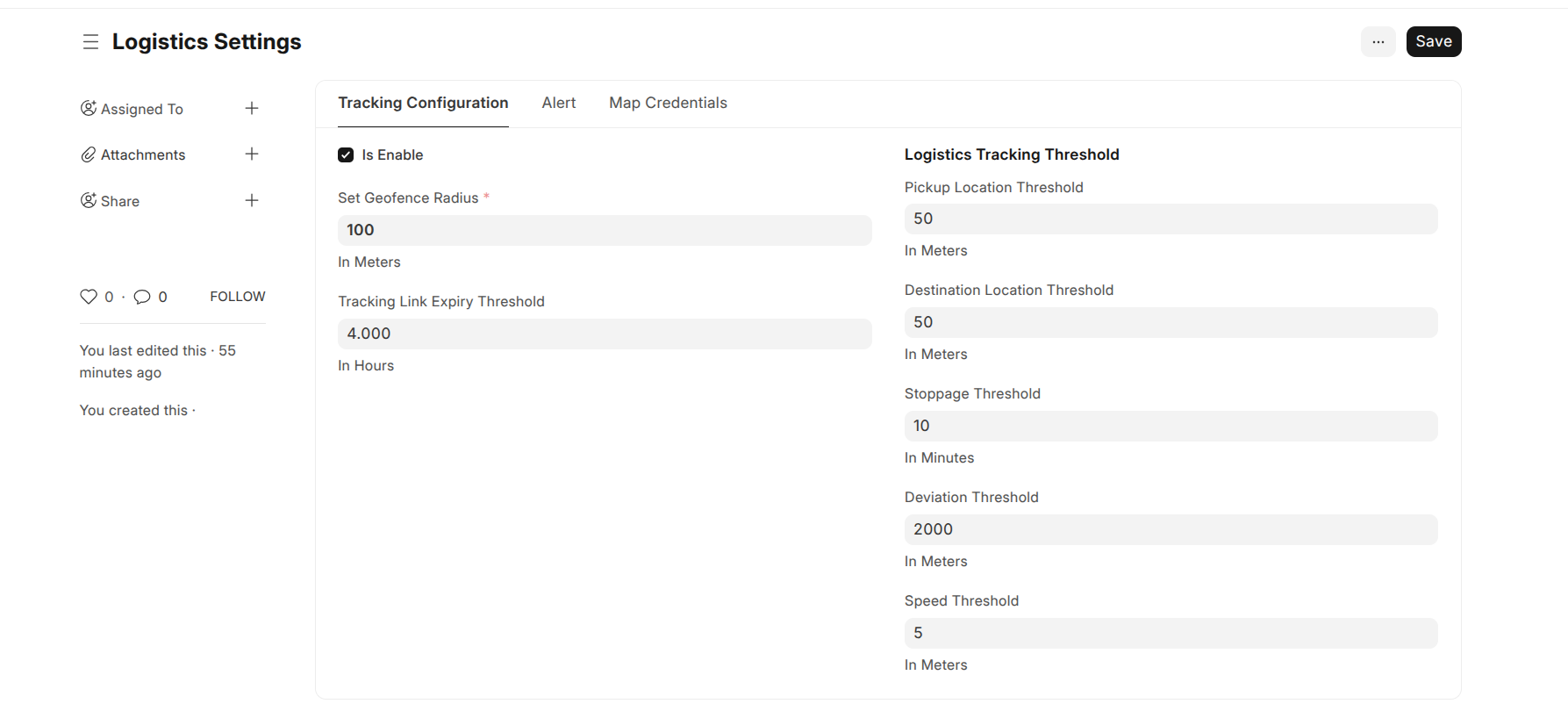
- Is Enable: Enables or disables the entire tracking system. When enabled, trip tracking features such as tracking link expiry and geofencing rules will be active.
- Tracking Link Expiry Threshold: Duration in hours (default: 4). Defines how long a tracking link will stay valid before expiring. Must be at least 4 hours.
- Set Geofence Radius: Radius in meters (default: 50). Used by the system as the default geofence radius applied when creating any new address, regardless of address type, if no specific radius is provided.
- Pickup Location Threshold: Distance in meters. Tolerance radius to detect if the vehicle has reached the pickup point.
- Destination Location Threshold: Distance in meters. Tolerance radius to confirm arrival at the destination.
- Stoppage Threshold: Minimum duration in minutes to consider that the vehicle has "stopped" (default applied from settings if not set).
- Deviation Threshold: Distance in meters to trigger a "Route Deviation" condition when the vehicle moves outside the planned path.
- Speed Threshold: Speed cutoff value expressed in meters/second (m/s). Determines when a vehicle is considered stopped based on its velocity.
2. Alert Settings
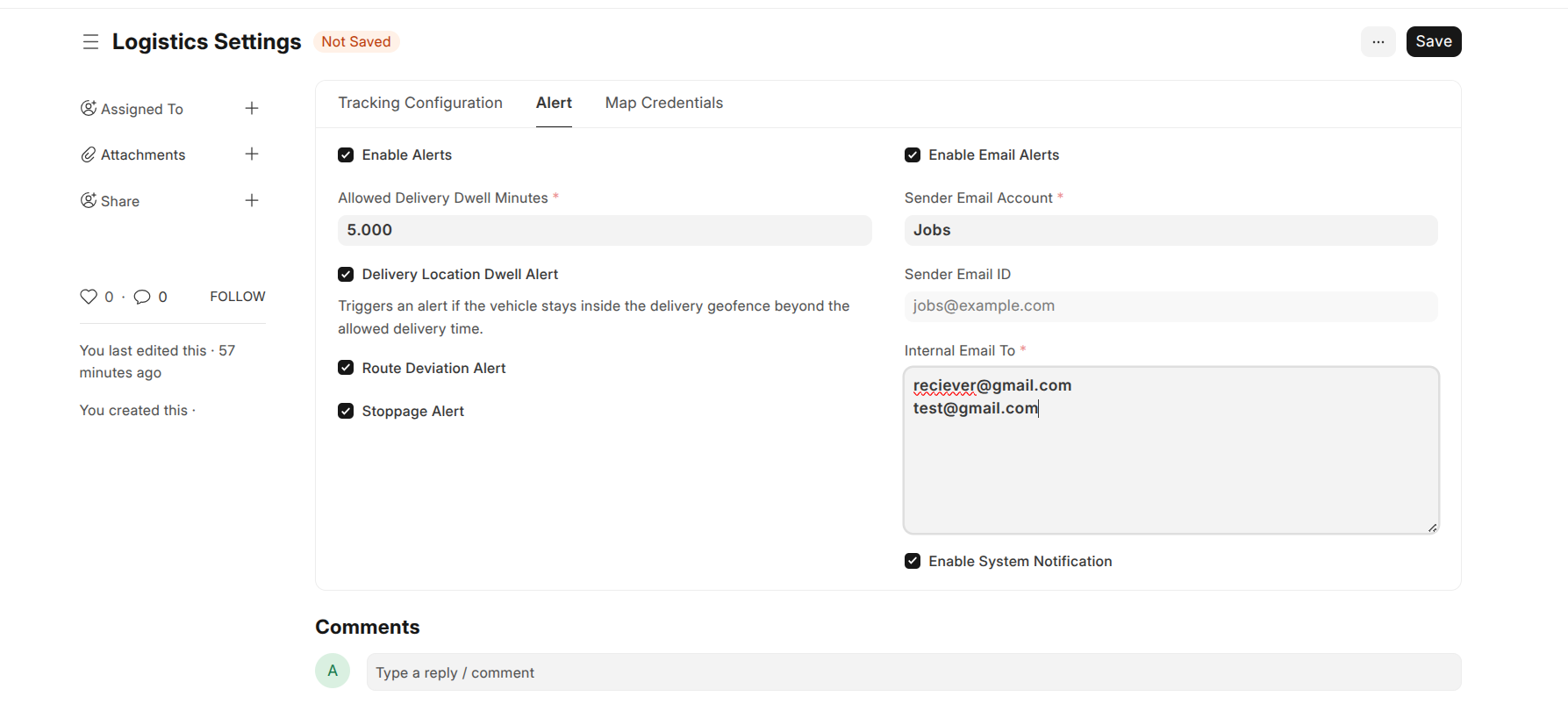
- Enable Alerts: Activates all alert conditions. If disabled, no alerts or notifications will be triggered.
- Delivery Location Dwell Alert: Triggers when the vehicle remains within the delivery geofence longer than allowed. Requires setting Allowed Delivery Dwell Minutes.
- Allowed Delivery Dwell Minutes: The maximum allowed delivery waiting time (in minutes) before a dwell alert is raised.
- Route Deviation Alert: Triggers if the vehicle moves beyond the configured Deviation Threshold.
- Stoppage Alert: Triggers if the vehicle remains idle for a duration longer than Stoppage Threshold.
3. Notification Settings
-
Enable Email Alerts: When enabled, alerts will also be
delivered to email recipients.
- Sender Email Account: The system email account configured in ERPNext from which alerts will be sent.
- Sender Email ID: Automatically fetched from the email account.
- Internal Email To: List of internal recipient email IDs (each on a separate line).
- Enable System Notification: Sends in-app notifications using the ERPNext notification system.
Note: At least one of Email Alerts or System Notifications must be enabled for alerts to function. Also, Email Alerts require specifying the sender email account and at least one internal recipient email address.
4. Map Credentials
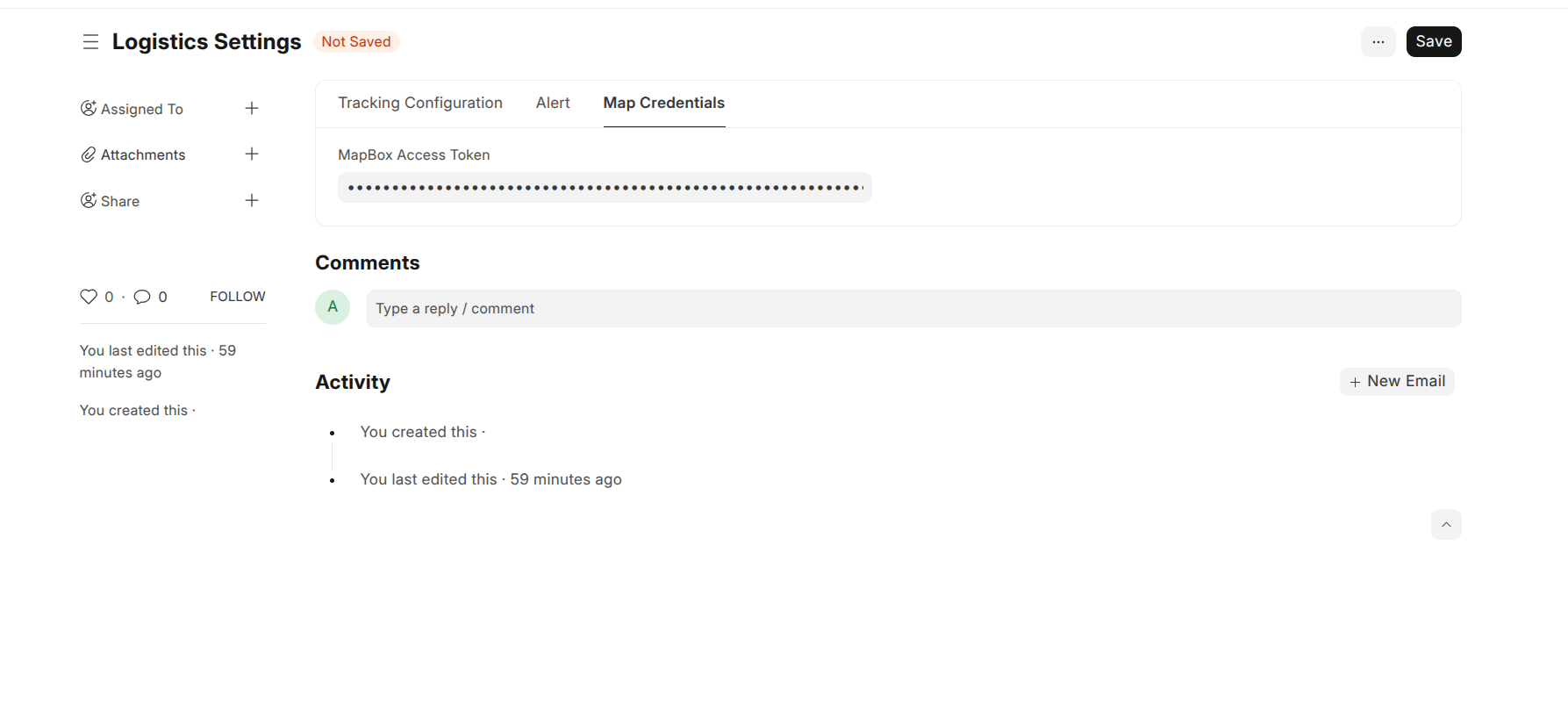
- MapBox Access Token: Required API key for map rendering and route visualization. This token allows the application to request route directions, geofencing, and map plotting from Mapbox services.
5. Validation
- Tracking Link Expiry Threshold Validation: Must be set and equal to or greater than 4 hours before enabling tracking.
- Geofence Radius Validation: Must be set before enabling tracking.
- Email Validation: If email alerts are enabled, the sender account and internal recipient email(s) are required, and all email IDs will be validated for correct format.
- Dwell Alert Validation: If enabled, the allowed delivery dwell minutes must be set.