Vehicle Invoice
Prerequisites
Before creating and working with a Vehicle Invoice, ensure the trip has a completed Vehicle Run Summary. The Vehicle Run Summary provides details of trip progress, vehicle usage, crew details, fuel expenses, and toll transactions. This data serves as the source for automatic Vehicle Invoice creation.
Only after the trip is marked complete with a valid Vehicle Run Summary can a Vehicle Invoice be generated. Verify that the run summary includes accurate fuel, toll, and crew data before generating the invoice.
Overview
The Vehicle Invoice is automatically generated from the Vehicle Run Summary. It consolidates trip billing, advances, expenses, penalties, and payouts into a single financial record for verification and payment processing.
Creating a Vehicle Invoice
- Open the completed Vehicle Run Summary for the desired trip.
- Click the Vehicle Invoice button available on the summary.
- Choose the invoice type (Single Trip or Round Trip).
- Verify all trip data and click Create Invoice. The form is generated automatically with pre-filled data.
Reviewing and Updating the Invoice
Once generated, the Vehicle Invoice includes multiple sections that summarize operational and financial data. Users can verify and update fields before submission.
Basic and Trip Details
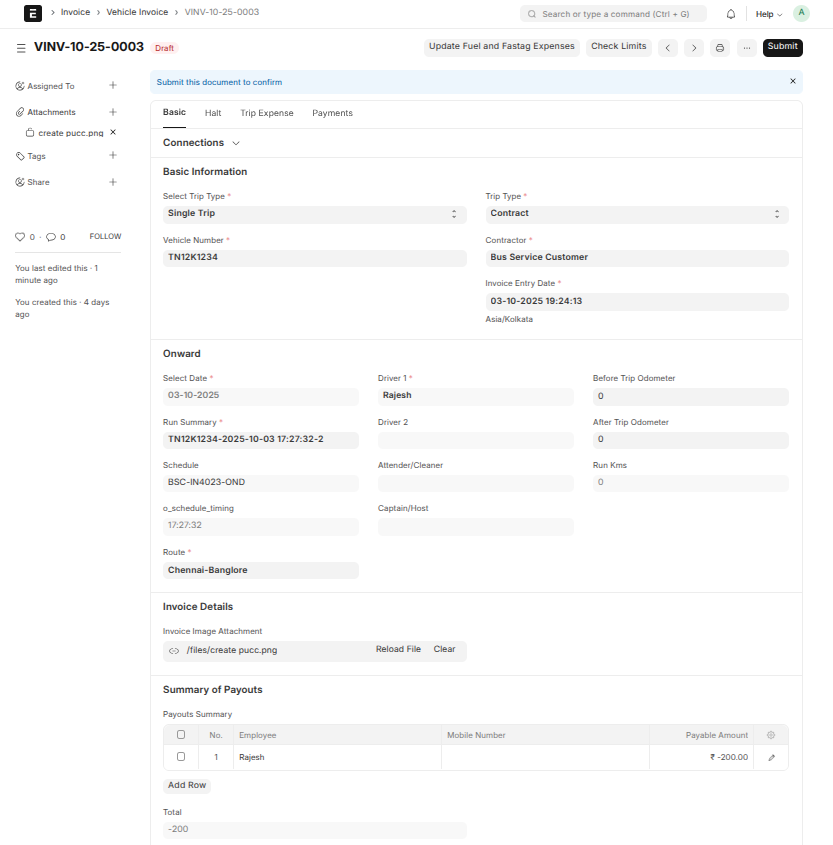
- Trip Info: Automatically filled from Vehicle Run Summary.
- Crew Members: Pre-fetched drivers, attenders, and hosts for reference.
- Dates and Odometer: Verified automatically and editable if corrections are required.
Expenses and Transactions
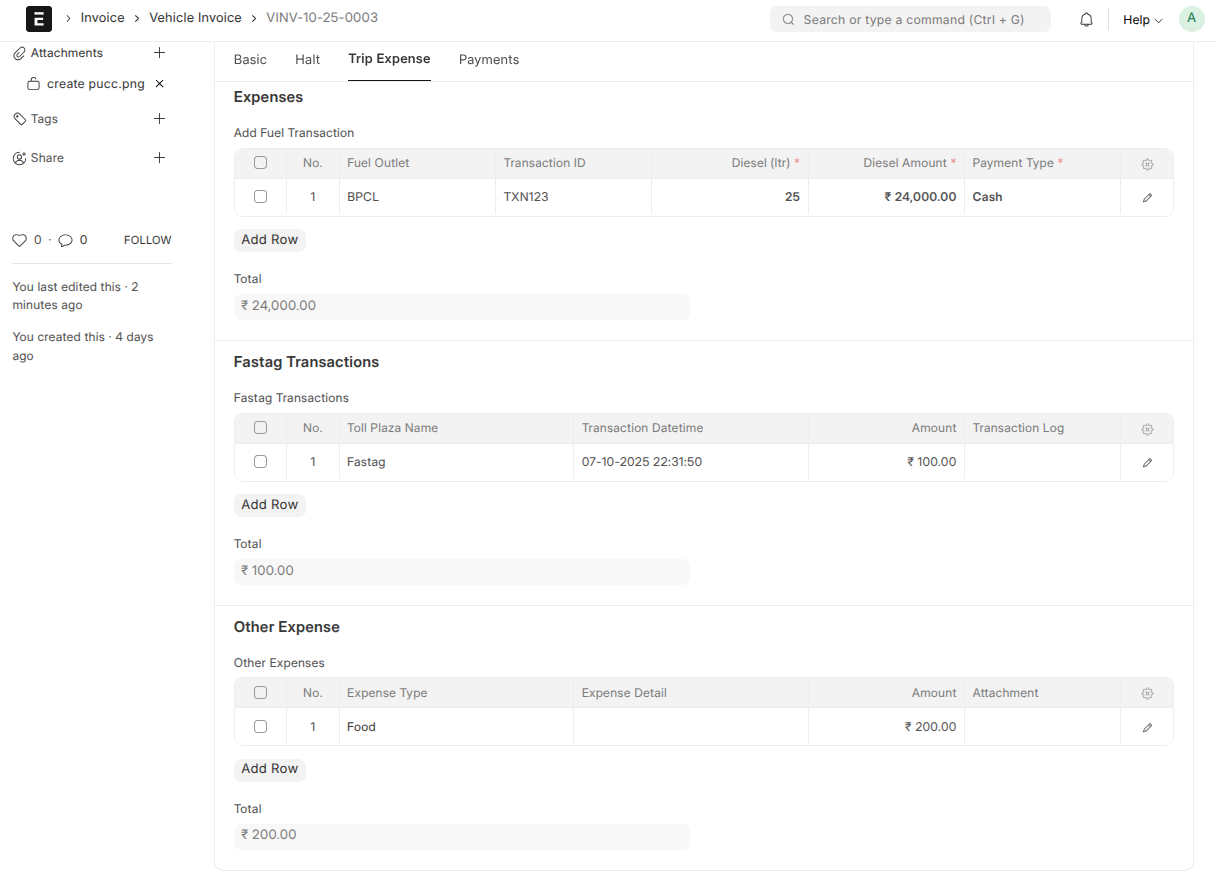
- Fuel and Fastag Expenses: The “Update Fuel and Fastag Expenses” button fetches the latest data from transaction logs.
- Other Expenses: Any manual or additional costs can be entered directly.
- Penalties: Enter applicable deductions or penalties for the crew.
Financial Details
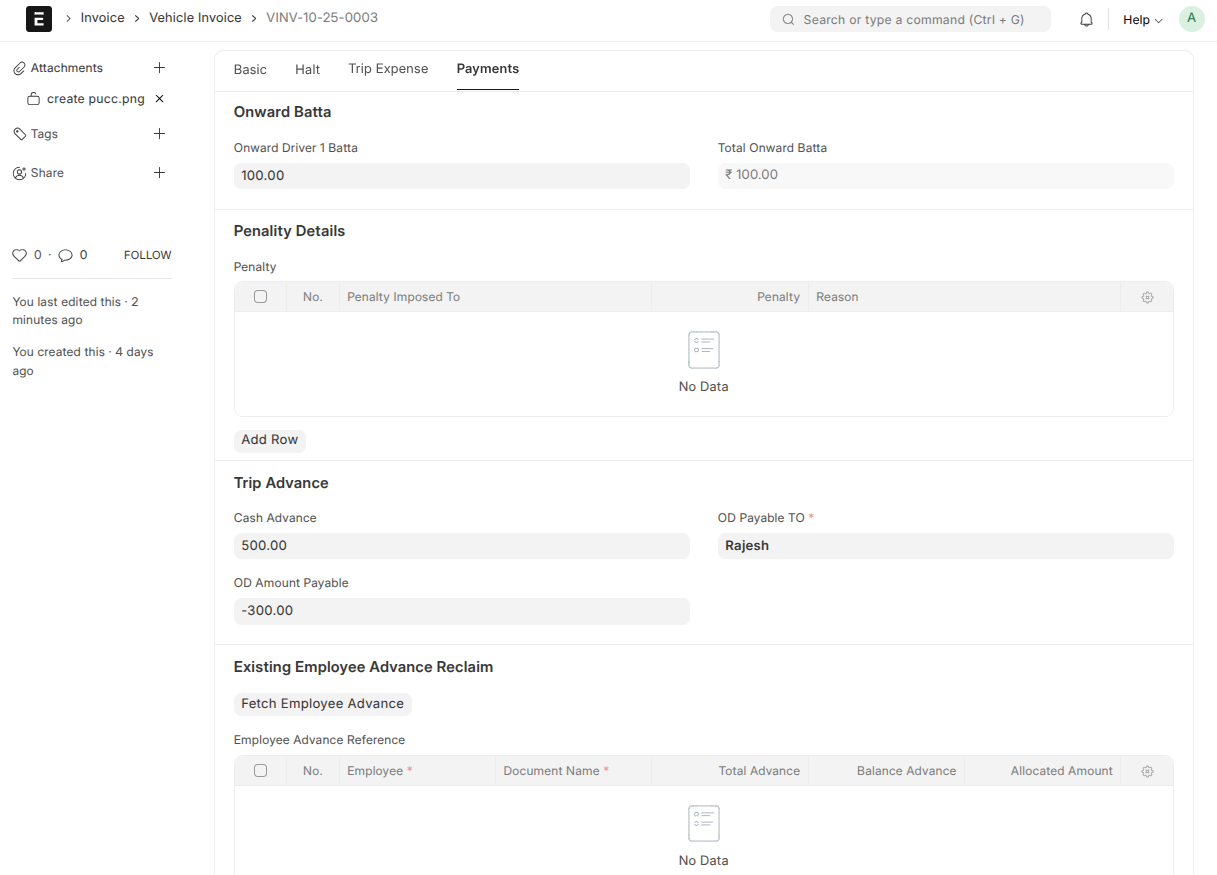
- Cash Advance: Records any advance payments issued before the trip.
- Order Dues and Payable To: Lists pending payments or reimbursements.
- Payout Summary: Displays calculated allowances, penalties, and total payout per crew member.
Actions and Buttons
| Button | Purpose | System Behavior |
|---|---|---|
| Update Fuel and Fastag Expenses | Retrieves updated transaction data from the trip logs. | Recalculates expense tables and refreshes totals. |
| Check Limits | Displays a comparison chart for fuel usage and idling limits. | Helps verify that consumption remains within configured thresholds. |
| Fetch Employee Advance | Fetches outstanding advances for each assigned crew member. | Populates the advance reclaim section automatically. |
| Create Employee Payout | Generates Employee Payout records post verification. | Creates linked payout documents with reference to the Vehicle Invoice. |
| Cancel | Used to void the invoice if required. | Updates document status and prevents further edits. |
Finalizing the Invoice
- Upload required images, fuel bills, or attachments.
- Click Submit to finalize the document.
- Status changes to Pending Verification.
- Once verified, click Approve to confirm and proceed with payments.
- Generate Employee Payout and Bank Payment records as the final step.
Post-Processing and Reports
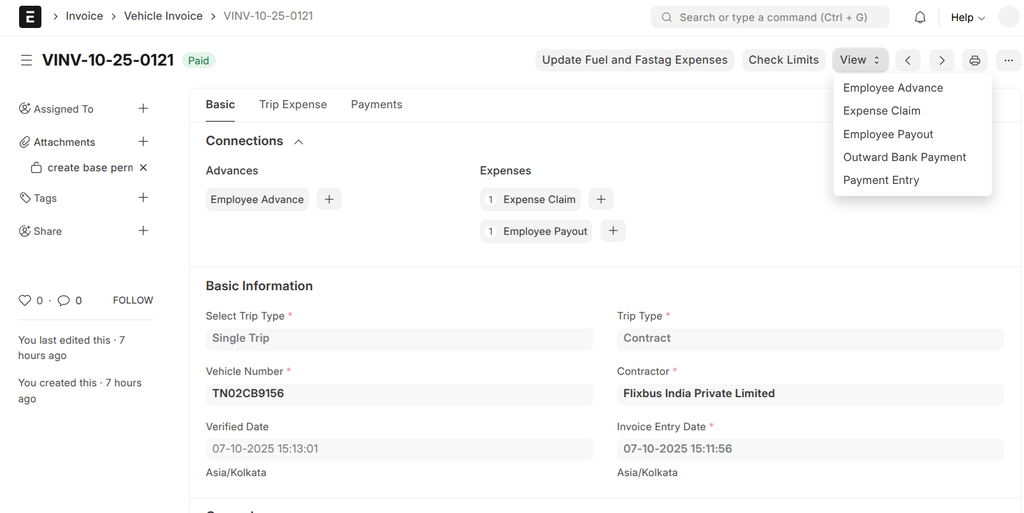
- Use “View” buttons to navigate to linked documents such as Employee Advances or Payouts.
- Audit and reconcile the data using linked references across modules.
Technical Flow
The following section provides a complete technical explanation for developers working on the Vehicle Invoice DocType, covering client-side behavior, backend processes, and system automation.
1. On Form Load (Client-Side)
- The system runs an initialization setup to load dynamic field filters for driver, attender, and route fields.
- Custom buttons such as Update Fuel and Fastag Expenses, Check Limits, and Create Employee Payout are dynamically displayed based on document status.
- Buttons are hidden automatically for completed or cancelled invoices.
- The interface also loads linked record summaries for easy navigation.
2. On Save / Validate (Server-Side)
- Before saving, the system validates that:
- Linked Vehicle Run Summary exists and matches vehicle details.
- All trip dates, odometer readings, and crew data are valid.
- Financial totals (fuel, advances, penalties) are recalculated.
- Validation errors are displayed to the user with proper messages to correct data.
3. After Save
- Updates dependent tables such as Fuel, Fastag, and Crew Allowances.
- Automatically updates total payable and refreshes display fields for the user.
- Ensures missing computed fields are filled using internal recalculation logic.
4. On Submit
- Workflow state transitions from Draft to Pending Verification.
- Associated records like Fuel Logs and Penalty Entries are locked to maintain data consistency.
- If configured, approval notifications are sent automatically to the designated approvers.
5. On Approval (Workflow Transition)
- When approved, the system triggers the process to create Employee Payout records.
- Each payout document references the parent Vehicle Invoice and carries relevant employee and trip details.
- Integrations are maintained with Expense Claim, Employee Advance, and Bank Payment for traceability.
6. Fuel and Fastag Data Update
- When “Update Fuel and Fastag Expenses” is clicked, the backend fetches recent logs from Fuel and Fastag tables linked with the Vehicle Run Summary.
- Expense entries are recalculated and the document totals are refreshed.
- After completion, a success message is displayed to confirm the update.
7. Check Limits and Analysis
- Fetches predefined diesel and idling limits for the vehicle category.
- Compares actual usage data from trip logs with the allowed limits.
- Displays a comparative chart for user review to identify excess consumption.
8. Cancel Workflow
- If the document is in “Approved” or “Unpaid” state, a cancel option is displayed.
- Upon confirmation, the system updates the status to “Cancelled” and restricts any further modification.
9. Database and Linkages
- Linked Doctypes: Vehicle Run Summary, Employee Advance, Expense Claim, Employee Payout, Outward Bank Payment, and Payment Entry.
- All references are bidirectional to maintain complete traceability between related financial and operational records.
10. Automation and Calculations
- Automatically computes:
- Onward and Return Trip Allowances.
- Fuel and Fastag Expenses.
- Net Payable Amount after deductions and advances.
- Updates happen in real-time to avoid manual recalculations.
11. Error Handling and Logging
- System displays user-friendly alerts for validation errors or missing data.
- Backend logs technical errors for developer debugging and audit purposes.
- Ensures no data loss occurs during transactions or workflow transitions.
Developer Notes
- This document acts as the primary financial bridge between trip tracking and payout management.
- Any modification in this DocType should ensure that dependent modules (Employee Payout, Bank Payment, Expense Claim) remain consistent.
- Developers should verify all field dependencies, triggers, and linked workflows before applying updates.