Vehicle Run Summary
Introduction
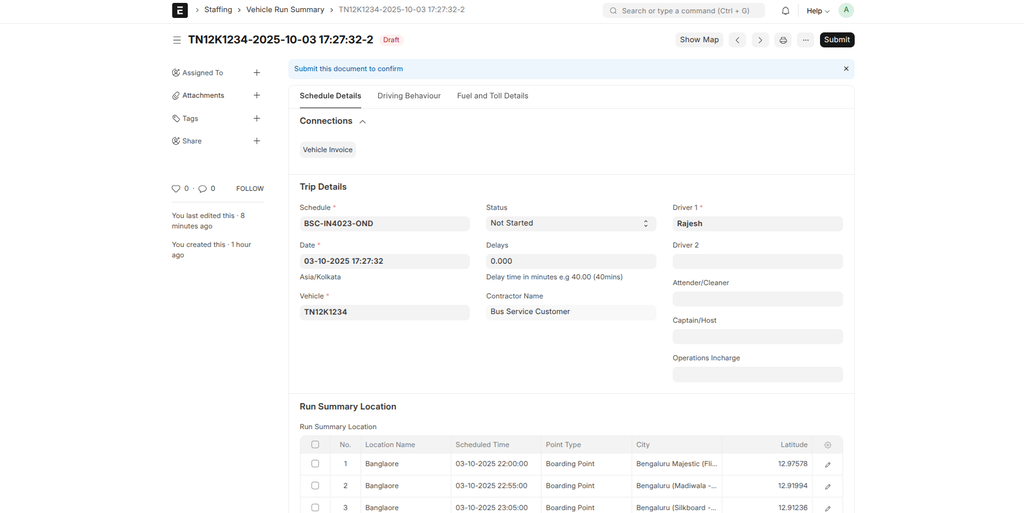
The Vehicle Run Summary module in the ERPNext Vehicle Trip Tracking system provides a comprehensive overview of a vehicle's trip execution. It captures real-time data on trip progress, crew details, fuel and toll expenses, driving behavior, and more. This document is created automatically in draft state when a trip is started via the Trip Roster Assignment workflow or using the "Create VRS" button.
Before working with Vehicle Run Summary, ensure the following prerequisites are set up:
- Trip Roster Assignment - References the assigned crew and schedule.
- Schedule Addition - Defines the trip's locations and timings.
- Vehicle and Crew Records - Linked from Trip Roster Assignment.
Purpose
Vehicle Run Summary tracks and summarizes all aspects of a trip's run, including actual vs. scheduled performance, expenses, and safety metrics. It supports invoicing, progress monitoring, and data-driven decisions for fleet operations. Updates occur via background jobs to ensure data accuracy without manual intervention.
Key Features
- Real-time trip progress tracking with map visualization.
- Automated data fetching for locations, timings, and metrics.
- Integration with fuel and toll transaction tables.
- Driving behavior logging and analysis.
- Invoice creation for single or round trips with validation.
- Workflow states for trip status (e.g., Started, Completed, Hold).
- Background updates and WhatsApp notifications for crew.
- Progress bar and dashboard alerts for specific statuses.
How to Use Vehicle Run Summary
1. Accessing the Document
The Vehicle Run Summary is auto-created in draft when a Trip Roster Assignment transitions to "Trip Started" or via the "Create VRS" button in Trip Roster Assignment. It pulls initial data from the linked Trip Roster Assignment and Schedule Addition.
2. Refresh and Conditional Displays
Upon loading or refreshing the form:
- If the status is "Inappropriate Trip Assignment", "Trip Not Happened", or "Hold", a red dashboard comment appears with a link to the linked Trip Roster Assignment, advising to cancel and recreate if needed. This does not update any fields but provides guidance.
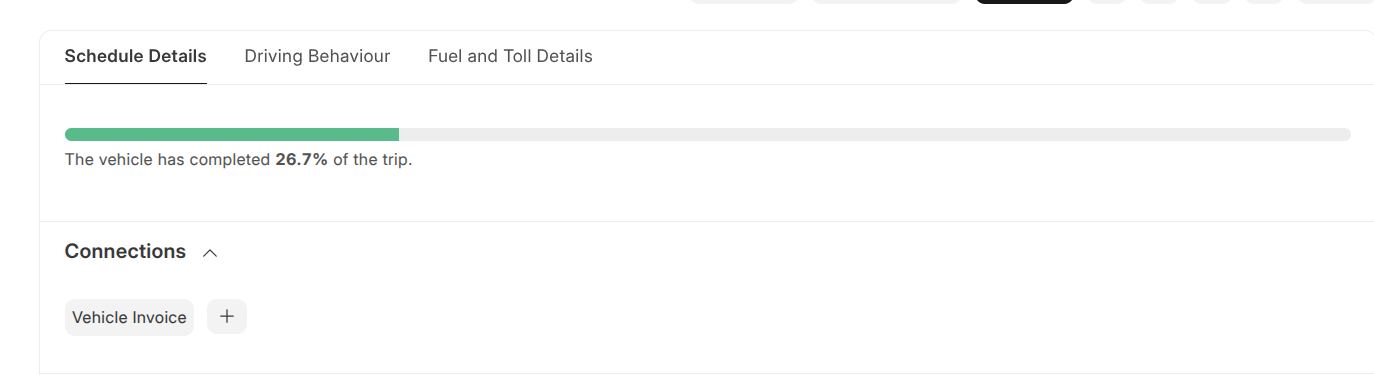
- If the status is "Started", a progress bar is displayed showing trip completion percentage based on reached locations. This visually updates but does not modify data.
3. Show Map Button
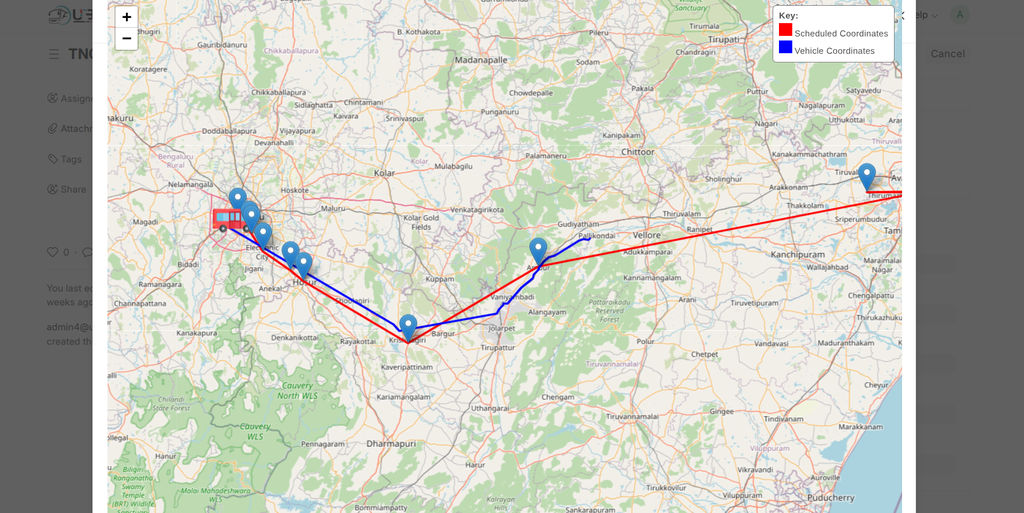
Click "Show Map" to open a popup dialog with an interactive Leaflet map:
- Displays scheduled coordinates (red polyline with markers for locations).
- Displays actual vehicle coordinates (blue polyline).
- Adds a bus icon at the last vehicle position with a hover popup for "Current Vehicle Location".
- Includes a legend for scheduled (red) and vehicle (blue) routes.
- The map adjusts bounds to fit both routes. This button fetches data and shows visualization without updating the document.
4. Fetch Run Data Button (Available after Submission)
Click "Fetch Run Data" to trigger an update:
- Refreshes fields like Run Summary Location (actual arrival times, delays), Driving Behaviour Detail, Fuel Transactions, Fastag Transactions.
- Updates metrics such as actual trip start time, actual trip end time, trip distance, trip fuel consumption, trip mileage, total fuel expense, total fastag expense.
- Sets missing values from related documents (e.g., crew from Trip Roster Assignment).
- Shows a freeze message during processing and a success message upon completion. This updates the document in real-time.
5. Vehicle Invoice Button (Available after Submission)
Click "Vehicle Invoice" to open a dialog for creating an invoice:
- Select "Invoice as Single Trip" or "Invoice as Round Trip".
- For Single Trip: Checks if already invoiced; if not, shows a confirmation table and creates the invoice linked to this VRS.
- For Round Trip: Fetches linked trip details; validates neither is invoiced; shows a table of both trips and creates a combined invoice.
- Updates the linked Trip Roster Assignment's is trip invoiced flag to 1 upon creation.
- Prevents duplicates by checking existing invoices. This button generates and links a new Vehicle Invoice document.
6. Submitting the Document
Upon submission (docstatus=1), the system enqueues a job to set any missing values (e.g., updating locations from schedule, crew details). This ensures data completeness.
7. Automations and Background Processes
Background jobs run periodically to update active trips (e.g., every day for trips from the last 2 days):
- Fetch and update location data, statuses, and metrics without user intervention.
- After trip completion, if eligible, send WhatsApp alerts to crew (driver, host) with invoice details and a link to submit invoices. Updates is whatsapp alert sent to 1.
Important Fields
| Field | Description | Required |
|---|---|---|
| Schedule | Link to Schedule Addition for locations and timings | Yes |
| Date | Trip date and time | Yes |
| Vehicle | Linked vehicle | Yes |
| Status | Trip status (e.g., Started, Completed, Hold) | No (defaults based on progress) |
| Ref Trip Roster Assignment | Link to originating assignment | No (auto-set) |
| Actual Trip Start/End Time | Actual timings (updated via fetch) | No |
| Trip Distance/Fuel Consumption/Mileage | Calculated metrics (updated via fetch) | No |
| Run Summary Location | Table of locations with scheduled/actual times, delays, coordinates, fuel levels, and more | No (auto-populated) |
| Driving Behaviour Detail | Table logging driving events with timestamp, behavior type, UOM, and affected unit | No |
| Fuel Transactions | Table of fuel expenses including outlet, transaction ID, diesel amount, payment type, and bill image | No |
| Fastag Transactions | Table of toll expenses with plaza name, datetime, amount, and transaction log | No |
| Total Fuel Expense | Sum of fuel costs (read-only) | No |
| Total Fastag Expense | Sum of toll costs (read-only) | No |
Workflow Overview
Vehicle Run Summary follows a status-based workflow:
- Not Started: Initial draft state; awaiting trip start.
- Started: Trip in progress; enables progress bar and data fetching.
- Completed: Trip ended; triggers invoice eligibility checks and WhatsApp alerts.
- Hold/Halted: Paused states; shows dashboard alerts.
- Trip Cancelled/Not Happened/Inappropriate: Terminal states; may require reassignment.
Transitions occur via data updates or manual changes. Submission (docstatus=1) locks core fields but allows updates via "Fetch Run Data".
Tips and Best Practices
- Use "Fetch Run Data" regularly for active trips to keep metrics current.
- Review the map for discrepancies between scheduled and actual routes.
- Ensure invoices are created only after trip completion to avoid validation errors.
- Monitor driving behavior and expenses tables for anomalies.
- Leverage background jobs for automatic updates on active trips.
- Enable WhatsApp integrations for timely crew notifications.