Vehicle
The Vehicle document in ERPNext FMS is used to manage all vehicles in your fleet. It serves as a central record for vehicle details, registration, compliance documents, and real-time status.
This document has been heavily customized to integrate with external services like Vahan for RC verification and to provide enhanced features for fleet management.
1. How to Create a Vehicle
You can create a vehicle in two ways:
A. Manual Creation
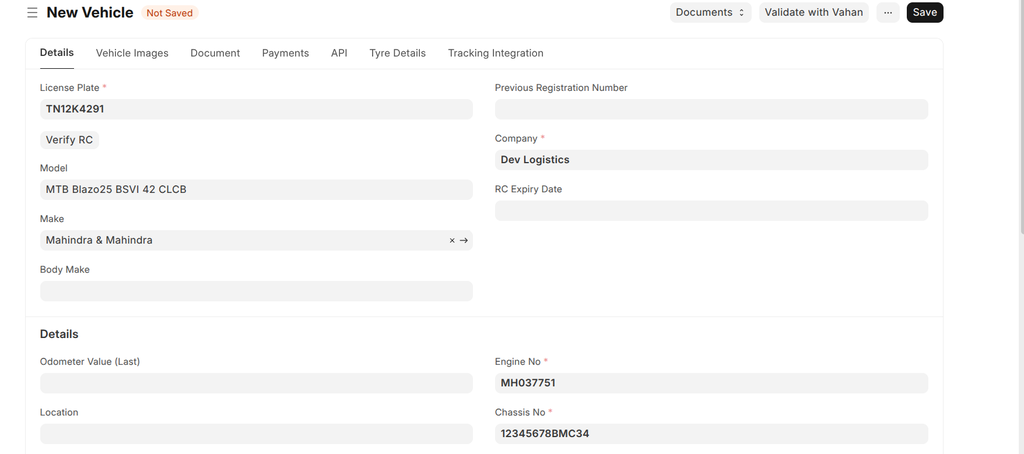
- Navigate to the Vehicle List and click + Add Vehicle.
- Fill in the vehicle's details, such as License Plate, Make, and Model.
- Save the document.
B. Create from Vahan (Recommended)
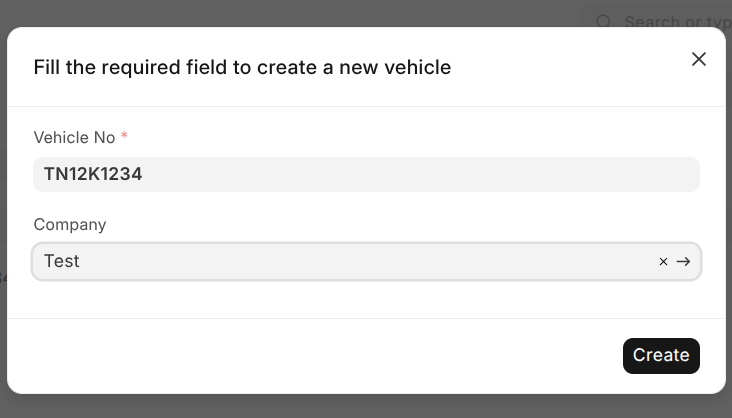
- From the Vehicle List, click the Create New Vehicle From Vahan button.
- Enter the Vehicle No (License Plate) and select the Company.
- Click Create. The system will fetch the vehicle's details from the Vahan service, automatically populating most of the fields, and create the new vehicle record.
2. Fields Description
The Vehicle form is organized into several sections. Below is a description of each field.
Main Details
| Field | Type | Description | Required |
|---|---|---|---|
| License Plate | Data | The unique registration number of the vehicle. This is the primary identifier. | Yes |
| Make | Link (Vehicle Make) | The manufacturer of the vehicle (e.g., Tata, Ashok Leyland). This is a selectable link. | No |
| Model | Link (Vehicle Model) | The specific model of the vehicle (e.g., Ace, Eicher 30.25). This is a selectable link. | No |
| RC Status | Select | A read-only status indicating the state of the vehicle's Registration Certificate (e.g., Active, Expired). This is updated automatically. | No |
Details Section
| Field | Type | Description | Required |
|---|---|---|---|
| Odometer Value (Last) | Int | The last recorded odometer reading for the vehicle. | No |
| Acquisition Date | Date | The date when the vehicle was acquired by the company. | No |
| Location | Data | The base location or depot where the vehicle is usually parked. | No |
| Chassis No | Data | The vehicle's unique Chassis Number. | No |
| Vehicle Value | Currency | The current market or insured value of the vehicle. | No |
| Employee | Link (Employee) | Assign a primary driver or employee to this vehicle. | No |
Additional Details Section
| Field | Type | Description | Required |
|---|---|---|---|
| Fuel Type | Select | The type of fuel the vehicle uses. Default is 'Diesel'. | Yes |
| Fuel UOM | Link (UOM) | The unit of measurement for fuel (e.g., Litre). Default is 'Litre'. | Yes |
| Last Carbon Check | Date | Date of the last pollution or carbon check. | No |
| Color | Data | The color of the vehicle. | No |
| Wheels | Int | Number of wheels on the vehicle. | No |
| Doors | Int | Number of doors on the vehicle. | No |
3. Custom Features and Actions
The Vehicle form includes several custom buttons and features to streamline fleet operations.
Custom Buttons
- Validate with Vahan: Click this button to fetch the latest RC details from the Vahan portal. This action syncs information like chassis number, owner details, and RC expiry, and marks the vehicle as "Verified".
- Documents (Dropdown):
- Insurance: A shortcut to view the latest Insurance document linked to this vehicle.
- Pollution: A shortcut to view the latest Pollution Under Control Certificate (Pollution) for this vehicle.
- Permit: A shortcut to view the latest Base Permit document for this vehicle.
Real-time Map View
A Render Map section is available on the vehicle form which displays the last known location of the vehicle on an interactive map. It includes the full address and a "Locate" button to center the map on the vehicle's position.
Automatic Document Status
The system automatically checks the validity of linked documents (Insurance, Pollution, Permit) and updates the RC Status field based on a priority:
- Expired: If any key document has passed its expiry date.
- Pending Document Upload: If a document record exists but the file is not attached.
- Not Verified: If a document is uploaded but not yet verified (e.g., via Vahan).
- Active: If all documents are valid, uploaded, and verified.