Vehicle Base Permit
The Vehicle Base Permit document is used to manage the primary permits required for vehicles to operate legally. This includes different types of permits such as the All India Tourist Permit (AITP), Contract Carriage (CC), and others. The system allows you to track permit validity, record payment details, and verify the permit's authenticity against the official Vahan database.
How to Create a Vehicle Base Permit
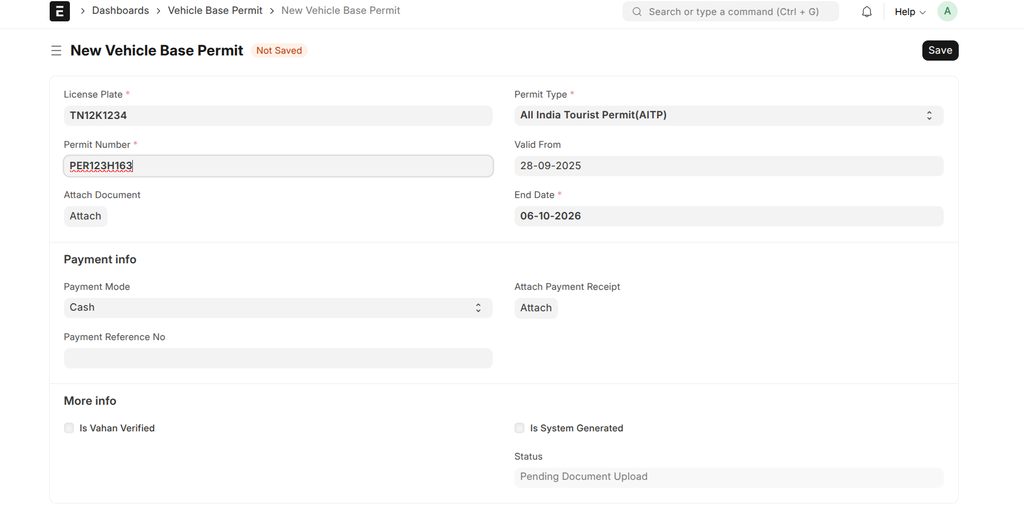
- Navigate to: Dashboards > Vehicle Base Permit.
- Click + Add Vehicle Base Permit.
- Fill in the permit details as described in the table below. The License Plate, Permit Type, and Permit Number are mandatory.
- Upload a scanned copy of the official permit document using the Attach Document field. A document must be attached to enable verification.
- You can also upload proof of payment using the Attach Payment Receipt field.
- Click Save.
- After saving, a Verify With Vahan button will become available. Click it to validate the permit details automatically.
Fields Description
| Field | Description | Required |
|---|---|---|
| License Plate | Link to the Vehicle to which this permit is issued. | Yes |
| Permit Type | Select the type of permit from the dropdown list (e.g., AITP, Contract Carriage, Tourist Permit). | Yes |
| Permit Number | The unique number printed on the permit document. This is used to identify the record. | Yes |
| Valid From | The date from which the permit's validity begins. | No |
| End Date | The expiry date of the permit. This date must be after the "Valid From" date. | Yes |
| Attach Document | Field to upload a scanned PDF or image of the official permit document. | No |
| Payment Info | A section to record payment details for the permit, including mode, reference number, and an optional payment receipt attachment. | No |
| Status | A read-only status indicating the current state of the permit based on the workflow below. | No |
| Is Vahan Verified | A read-only checkbox that is ticked automatically if the permit details are successfully validated against the Vahan service. | No |
| Verified Datetime | A read-only timestamp showing the exact date and time of the last successful Vahan verification. | No |
Verification and Status Workflow
The system provides a clear, color-coded status for each permit to help you quickly assess its compliance status. The workflow is automated based on document uploads and Vahan verification results.
- Pending Document Upload: The permit record is created, but the official document has not been uploaded. Verification is not possible at this stage.
- Not Verified: A document has been uploaded, but its details either failed verification against the Vahan portal or have not been checked yet.
- Verified: The permit document has been uploaded and its validity has been successfully confirmed with the official Vahan database.
- Expired: The permit's "End Date" has passed, and it is no longer valid.
- Disabled: The permit has been replaced by a newer one for the same vehicle and permit type. The system automatically disables older records to avoid confusion.