Vehicle Setup: Make, Class, Emission Standard, and Model
To properly configure vehicles in the ERPNext FMS module, you first need to define several key master documents. The primary document is the Vehicle Model, which stores detailed specifications for each type of vehicle in your fleet. However, before creating a Vehicle Model, you must set up its prerequisites:
- Vehicle Make: The manufacturer of the vehicle.
- Vehicle Emission Standard: The emission norm the vehicle complies with (e.g., BS VI).
- Vehicle Class: The category of the vehicle, which determines its FASTag details and weight classification.
This guide explains how to set up each of these masters, followed by the main Vehicle Model document.
1. Prerequisite: Vehicle Make
The Vehicle Make document is a simple master for storing the names of vehicle manufacturers.
How to Create a Vehicle Make:
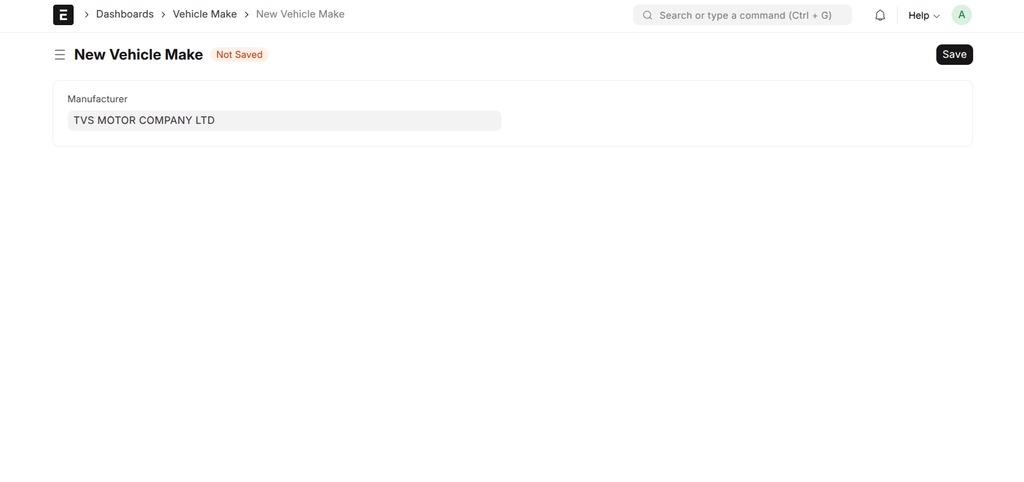
- Navigate to: Dashboards > Vehicle Make.
- Click + Add Vehicle Make.
- In the Manufacturer field, enter the name of the brand (e.g., "Tata Motors", "Ashok Leyland").
- Click Save.
| Field | Description | Required |
|---|---|---|
| Manufacturer | The unique name of the vehicle manufacturer. | Yes |
2. Prerequisite: Vehicle Emission Standard
This master document is used to define the emission standards that vehicles adhere to.
How to Create a Vehicle Emission Standard:
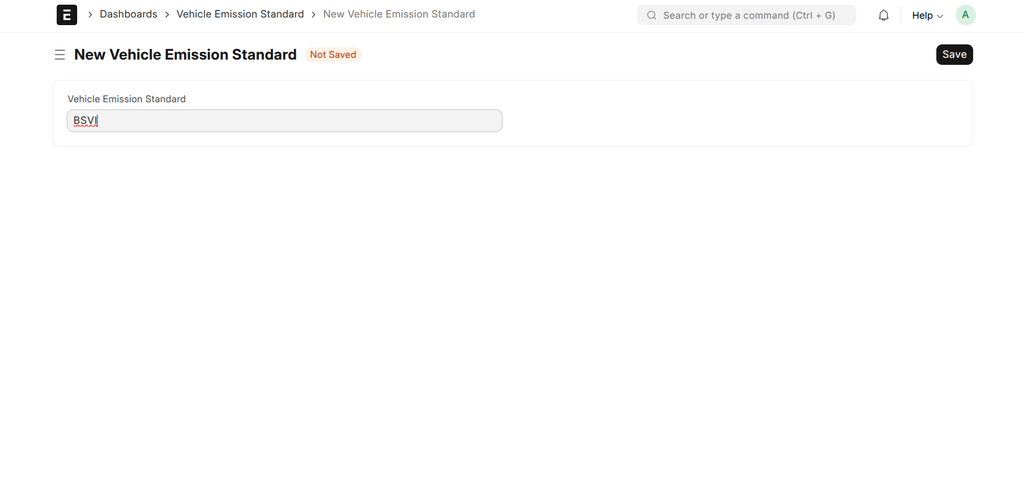
- Navigate to: Dashboards > Vehicle Emission Standard.
- Click + Add Vehicle Emission Standard.
- In the Vehicle Emission Standard field, enter the norm (e.g., "BS VI", "BS IV").
- Click Save.
| Field | Description | Required |
|---|---|---|
| Vehicle Emission Standard | The unique name of the emission standard. | Yes |
3. Prerequisite: Vehicle Class
The Vehicle Class document categorizes vehicles based on their type, which automatically populates FASTag and Gross Vehicle Mass (GVM) details.
How to Create a Vehicle Class:
- Navigate to: Dashboards > Vehicle Class.
- Click + Add Vehicle Class.
- Select a Vehicle Class Description from the dropdown list (e.g., "Truck 3 - axle").
- The system will automatically fill the Fastag Details and GVM fields based on your selection.
- Click Save. The record name will be set to the description you selected.
Automated Fields:
When you select a Vehicle Class Description, the following fields are automatically populated based on predefined rules:
| Field | Description |
|---|---|
| Mapper Vehicle Class | An internal mapping ID for the vehicle class. |
| Tag Vehicle Class | The numeric class required for FASTag categorization. |
| Tag Color | The color code for the FASTag sticker (e.g., Orange, Yellow). |
| Minimum GVM / Maximum GVM | The minimum and maximum Gross Vehicle Mass (in Kgs) for this class. |
4. Main Document: Vehicle Model
The Vehicle Model document is the central master where you define the specific technical and performance details for each vehicle model in your fleet.
How to Create a Vehicle Model:
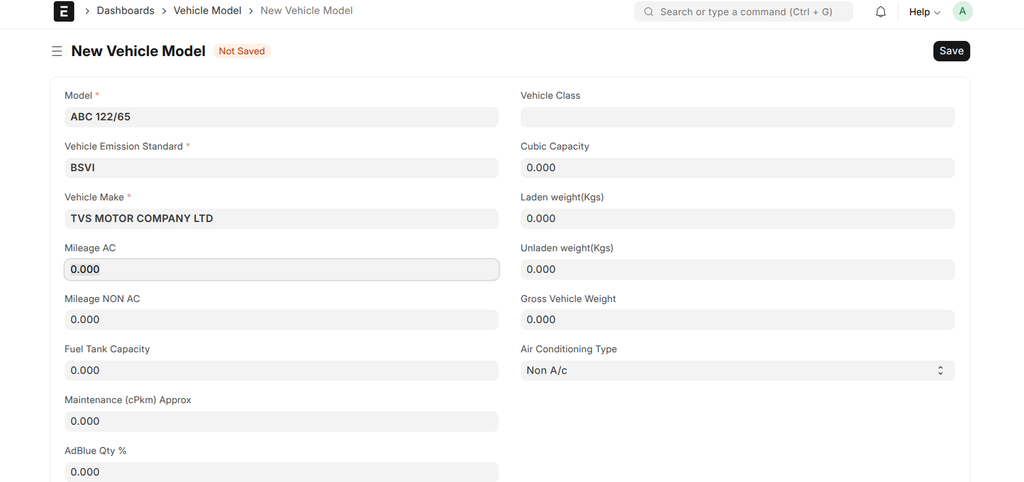
- Ensure you have already created the required Vehicle Make, Vehicle Emission Standard, and Vehicle Class.
- Navigate to: Dashboards > Vehicle Model.
- Click + Add Vehicle Model.
- Fill in the details as described below.
- Click Save.
Fields Description:
| Field | Description | Required |
|---|---|---|
| Model | The unique name of the vehicle model (e.g., "Ace Gold", "Eicher Pro 3015"). | Yes |
| Vehicle Emission Standard | Link to the emission standard this model complies with. | Yes |
| Vehicle Make | Link to the manufacturer of this model. | Yes |
| Vehicle Class | Link to the classification of this model. | No |
| Mileage AC / Non AC | Expected fuel efficiency (in km/L) with and without air conditioning. | No |
| Fuel Tank Capacity | Total capacity of the fuel tank in liters. | No |
| Maintenance (cPkm) Approx | Approximate maintenance cost per kilometer. | No |
| AdBlue Qty % | Percentage of AdBlue required relative to fuel consumption. | No |
| Cubic Capacity | The engine's displacement in cubic centimeters (CC). | No |
| Laden/Unladen Weight (Kgs) | The vehicle's weight with a full load (laden) and when empty (unladen). | No |
| Gross Vehicle Weight | The total operating weight of the vehicle (Unladen Weight + Payload). | No |
| Air Conditioning Type | Specifies if the model is A/C or Non A/C. Defaults to "Non A/c". | No |
5. Prerequisite: Vehicle Body Maker
The Vehicle Body Maker master stores the names of companies that construct the vehicle bodies.
How to Create a Vehicle Body Maker:
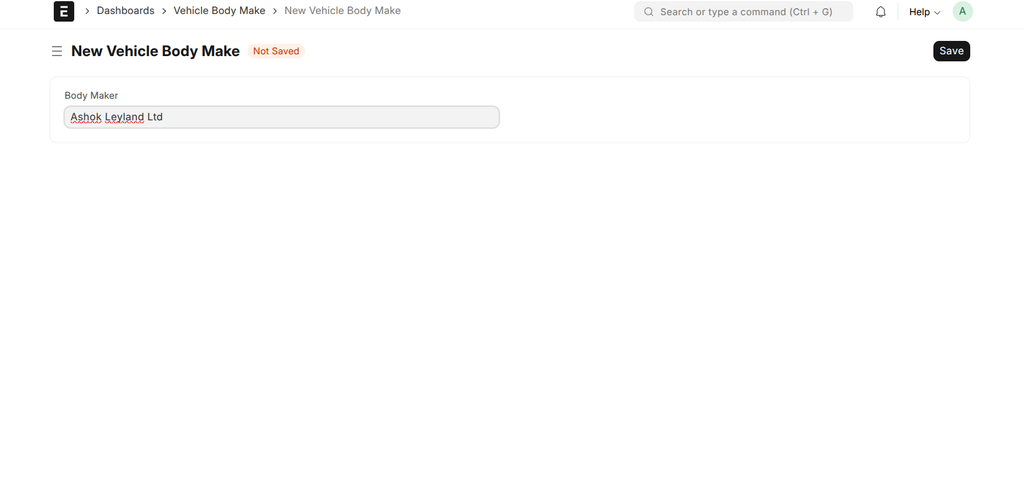
- Navigate to: Dashboards > Vehicle Body Make.
- Click + Add Vehicle Body Make.
- In the Body Maker field, enter the name of the body building company.
- Click Save.
| Field | Description | Required |
|---|---|---|
| Body Maker | The unique name of the company that built the vehicle's body. | Yes |