Daily Bus Trip Assignment Tracking
Introduction
The Daily Bus Trip Assignment Tracking module in the ERPNext Vehicle Trip Tracking system provides a daily overview of bus trip assignments. It lists all scheduled trips for a specific date, showing their assignment status, responsible personnel, deadlines, and related documents. This document is created automatically by the system via a background job, pulling data from active Schedule Additions and existing Trip Roster Assignments. Users can view and interact with these documents but cannot create them manually—the system handles creation automatically.
Before using Daily Bus Trip Assignment Tracking, ensure the following prerequisites are set up:
- Schedule Addition - Defines the trips and their timing slots.
- Trip Roster Assignment - Assigns crew and vehicles to schedules (docstatus=1).
- Trip Alert Settings - Configures alert timings and recipients for unassigned trips (detailed below).
- Employee Records - With custom email and mobile for operational incharges.
Purpose
This module helps fleet managers monitor trip assignments on a daily basis, identify unassigned trips, track deadlines, and ensure timely rostering. It supports alerts for missed assignments and links to related documents like Vehicle Run Summary and Vehicle Invoice for end-to-end tracking.
Key Features
- Automatic daily creation of tracking documents listing all scheduled trips.
- Assignment status (Assigned/Unassigned/No Trip Scheduled) with deadlines and alerts.
- Links to Trip Roster Assignment, Vehicle Run Summary, and Vehicle Invoice.
- Automated email and WhatsApp alerts for unassigned trips based on configured settings.
- Sorting of trips by assignment deadline for prioritization.
- Markers for "No Trip Scheduled" with user and timestamp.
- Integration with Trip Alert Settings for customizable alert rules.
Configuring Trip Alert Settings
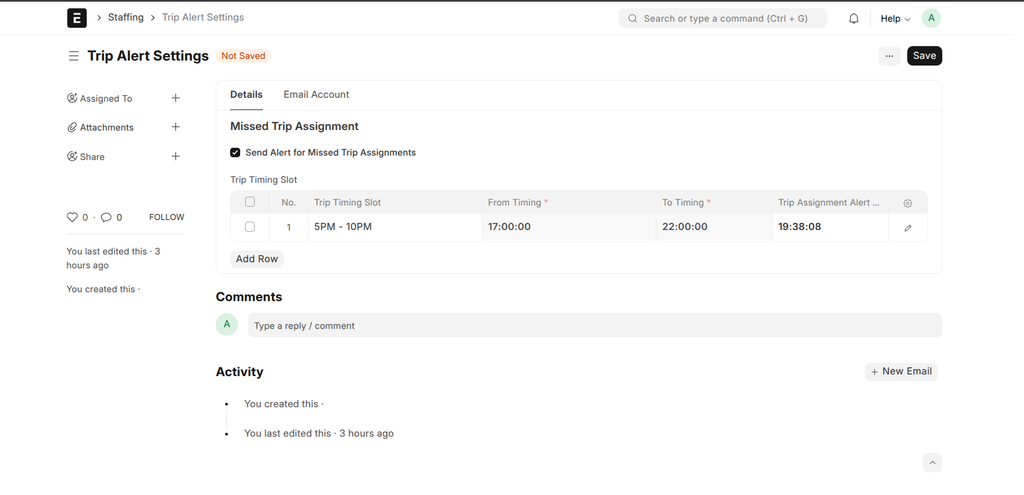
Trip Alert Settings is a single document (singleton) that controls alert behaviors for missed trip assignments. Access it via the ERPNext menu under Vehicle Trip Tracking > Trip Alert Settings. Enable alerts and configure recipients to ensure timely notifications for unassigned trips.
Key Configuration Steps:
- Check "Send Alert for Missed Trip Assignments" to enable the feature.
- Add rows to the "Trip Timing Slot" table to define specific timing slots, including whether to send alerts, the day offset for alerts (e.g., Day 1 before trip), and the exact alert time.
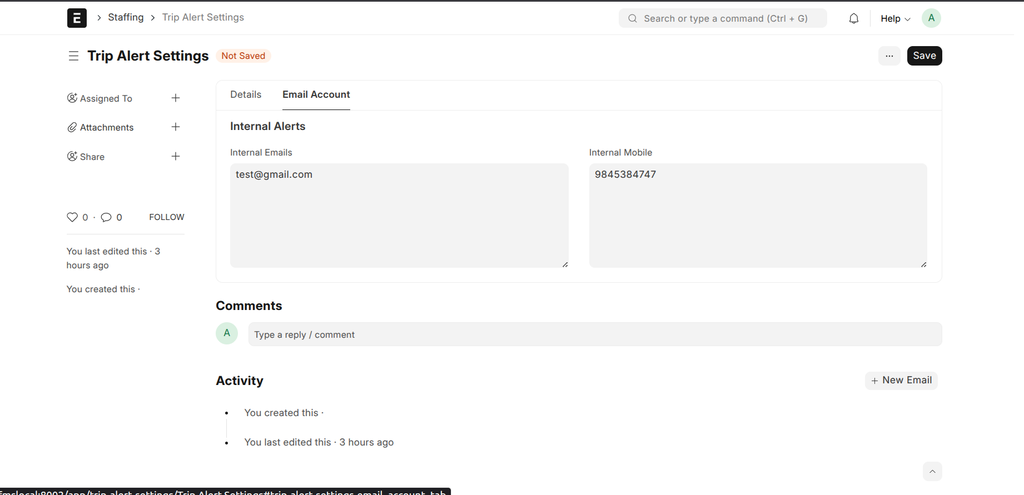
- Enter internal emails (comma or space-separated) for CC on email alerts.
- Enter internal mobile numbers (comma or space-separated) for WhatsApp alerts.
Save the document to apply changes. These settings drive the automated alerts in Daily Bus Trip Assignment Tracking.
How to Use Daily Bus Trip Assignment Tracking
1. Accessing the Document
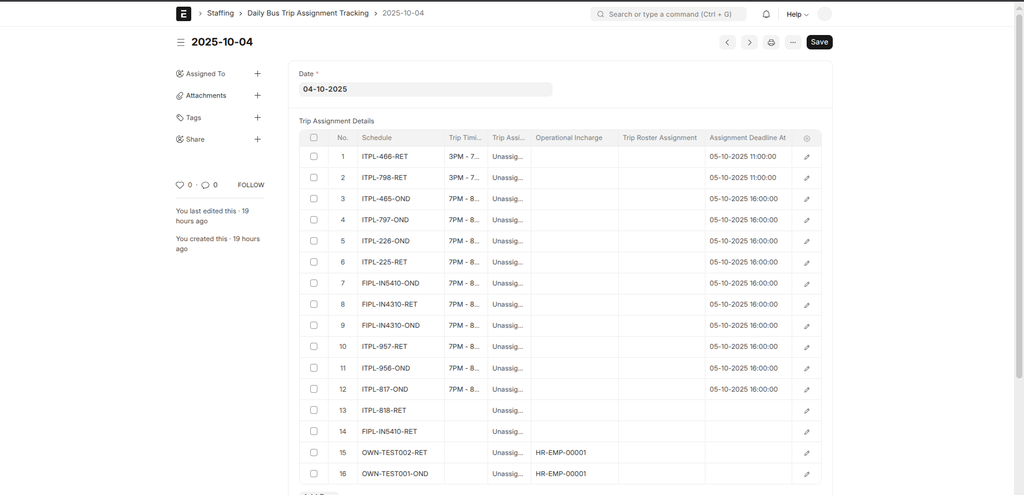
The document is auto-created daily for the next day (e.g., on October 3, 2025, it creates for October 4, 2025). It populates the Trip Assignment Details table with all active schedules, marking them as Assigned if a submitted Trip Roster Assignment exists, or Unassigned otherwise. If a document for the date already exists, no duplicate is created. Users can search for and view these documents in the list view but cannot initiate creation—the system manages this automatically.
2. Viewing and Refreshing
Upon loading or saving the form:
- The Trip Assignment Details table is sorted by assignment deadline (earliest first).
- For any row marked as "No Trip Scheduled", it automatically sets the current user as no trip marked by and the current timestamp as no trip marked time if not already set.
- Assignment deadlines and alert times are calculated based on the trip timing slot and Trip Alert Settings, updating the relevant fields.
3. Manual Updates
You can manually edit the Trip Assignment Details table:
- Change trip assignment status to "No Trip Scheduled" – this triggers updating the marker fields with your user and current time.
- Link a Trip Roster Assignment, Vehicle Run Summary, or Vehicle Invoice to a row, which updates the status to "Assigned" if applicable.
- Save the document to reorder by deadline and apply any validation changes.
4. Automated Alerts
Background jobs periodically check for unassigned trips where the alert time has passed but the deadline has not (based on Trip Alert Settings):
- Sends email alerts to the operational incharge's custom email (with CC to internal emails from Trip Alert Settings), listing unassigned schedules, slots, and deadlines. Marks is mail alert sent as 1 for those rows.
- Sends WhatsApp alerts to the operational incharge's custom mobile number (and internal mobiles from settings) with the count of unassigned trips. Marks is whatsapp alert sent as 1 for those rows.
- Alerts are grouped by operational incharge for efficiency.
Important Fields
| Field | Description | Required |
|---|---|---|
| Date | The date for which trips are tracked (autonamed as yyyy-mm-dd) | Yes |
| Trip Assignment Details | Table listing trips with details below | No (auto-populated) |
| Schedule | Link to Schedule Addition | Yes |
| Trip Timing Slot | Timing slot from the schedule | No |
| Trip Assignment Status | Assigned/Unassigned/No Trip Scheduled | No (defaults to Unassigned) |
| Operational Incharge | Employee responsible for assignment | No |
| Trip Roster Assignment | Link to assigned roster (updates status to Assigned) | No |
| Assignment Deadline | Calculated deadline datetime for assignment | No (auto-set) |
| Vehicle Run Summary | Link to related run summary | No |
| Vehicle Invoice | Link to related invoice | No |
| No Trip Marked By | User who marked as No Trip Scheduled | No (auto-set) |
| No Trip Marked Time | Timestamp when marked | No (auto-set) |
| Is Whatsapp Alert Sent | Flag if WhatsApp alert was sent (1=yes) | No |
| Is Mail Alert Sent | Flag if email alert was sent (1=yes) | No |
| Assignment Alert At | Datetime when alert should be sent | No (auto-set) |
Workflow Overview
The document is typically in a read-only monitoring state but can be edited for status changes:
- Creation: Automatic via background job, populates unassigned trips.
- Assignment: Link a Trip Roster Assignment to change status to Assigned.
- No Trip: Set status to No Trip Scheduled, auto-marks user and time.
- Alerts: Automatic when unassigned past alert time but before deadline.
- No formal docstatus; save to apply changes and reorder.
Tips and Best Practices
- Review daily documents to prioritize unassigned trips by deadline.
- Configure Trip Alert Settings accurately for effective alerts.
- Ensure operational incharges have custom email/mobile for receiving alerts.
- Use links to quickly navigate to related rosters and summaries.
- Mark "No Trip Scheduled" promptly to track decisions.
- Enable Twilio integration for WhatsApp alerts.