Trip Roster Assignment
Introduction
The Trip Roster Assignment module in the ERPNext Vehicle Trip Tracking system enables the assignment of crew members, drivers, and other personnel to specific trips. It ensures proper rostering for operational efficiency, safety, and compliance.
Before creating a Trip Roster Assignment, ensure that you have set up the following prerequisites:
- Trip Schedule - Defines the overall trip plan
- Schedule Addition - Details daily schedules and timings
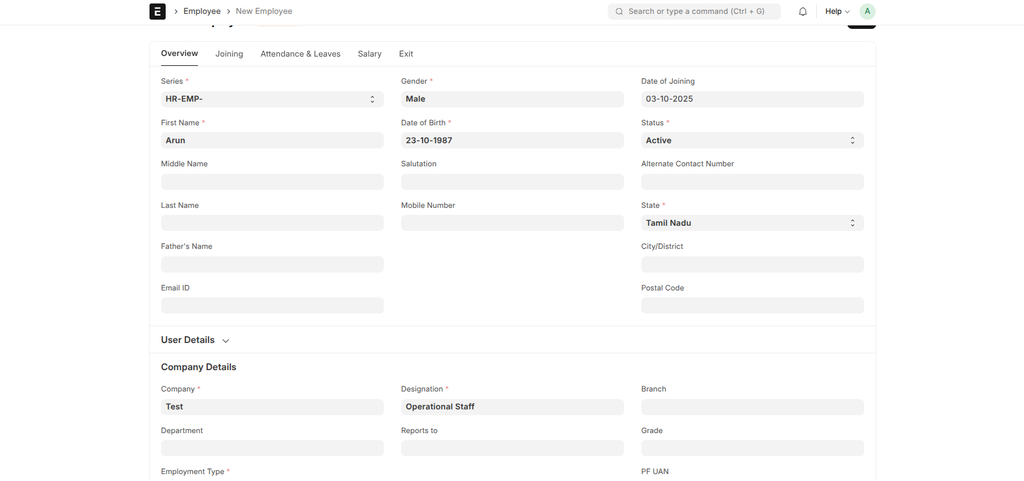
- Employee Records - Personnel available for assignment (e.g., drivers, attendants)
- Trip Crew Member - Separate doctype for creating and assigning crew roles like drivers
Purpose
Trip Roster Assignment manages the allocation of human resources to trips, tracking availability, shifts, and responsibilities. It helps in preventing over-assignment, ensuring shift compliance, and generating rosters for fleet operations. The system automatically checks for conflicts and availability during the process.
Key Features
- Link to Trip Schedules and Schedule Additions
- Assign employees to roles (e.g., Driver, Co-Driver, Attendant) via Trip Crew Member doctype
- Shift and roster visualization
- Automated availability checks and conflict resolution by the system
- Crew member verification for driver, attendant, and operational in-charge during trip start and end
- Automated notifications for assignments
- Workflow for approval and adjustments, including triggering Vehicle Run Summary creation via "Create VRS" button
- "Cancel Trip" functionality to cancel ongoing trips
- Integration with HR Roster for shift management
How to Create a Trip Roster Assignment
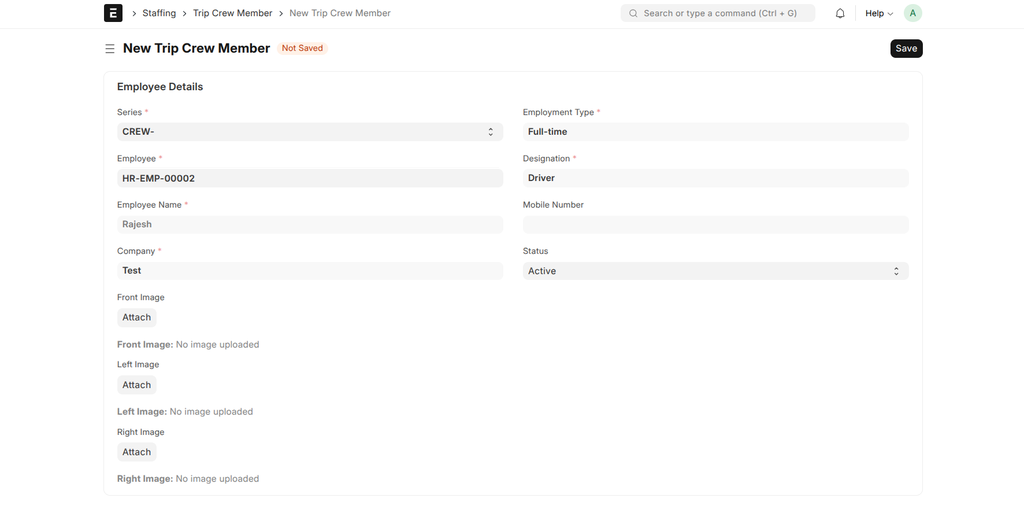
1. Create Trip Crew Member
First, create a Trip Crew Member record (a separate doctype) for the driver or crew. Select an existing employee, assign the role (e.g., Driver), and save the details. This step is required before roster assignment.
2. Select Trip Schedule
Choose the relevant Trip Schedule to which the roster will be assigned.
3. Link Schedule Addition
Associate the assignment with a specific daily schedule addition for timing details.
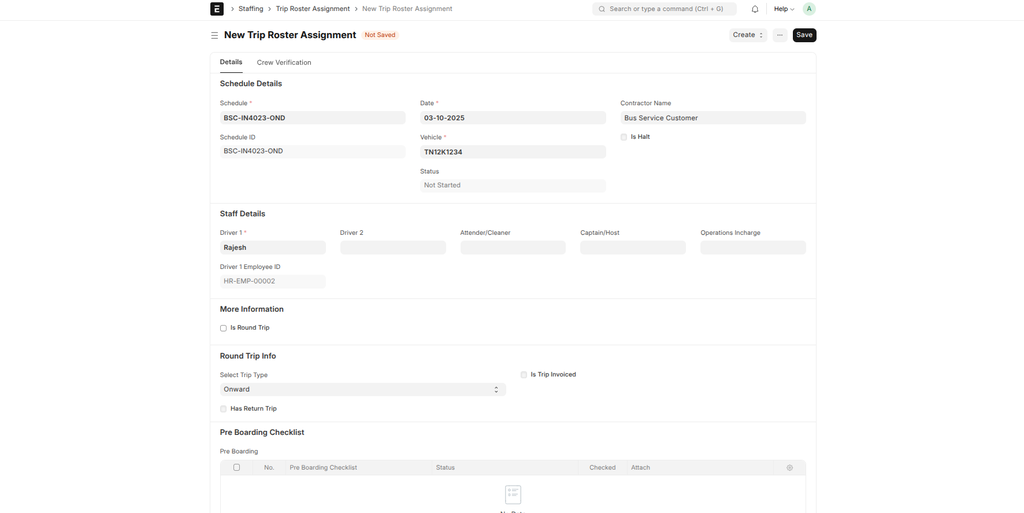
4. Assign Employees to Roles
Select employees (including the pre-created Trip Crew Members like drivers) for various roles such as Driver, Co-Driver, or Attendant. The system automatically checks for availability and conflicts during this step.
5. Define Shift Details
Specify shift timings, durations, and any repeating patterns using the integrated roster tools.
6. Check for Conflicts and Availability
The system performs automatic checks for any assignment conflicts or availability issues. Review and resolve them if needed before proceeding.
7. Save and Submit
Save the roster assignment and submit it for approval. Notifications will be sent to assigned employees.
8. Create Vehicle Run Summary (VRS)
Once the roster is ready, use the "Create VRS" button in the Trip Roster Assignment to automatically create a Vehicle Run Summary document in draft state.
9. Verify Crew Members and Start/End Trip
Before starting or ending the trip, perform crew member verification for the driver, attendant, and operational in-charge. This ensures all assigned personnel are confirmed and ready.
10. Workflow Management
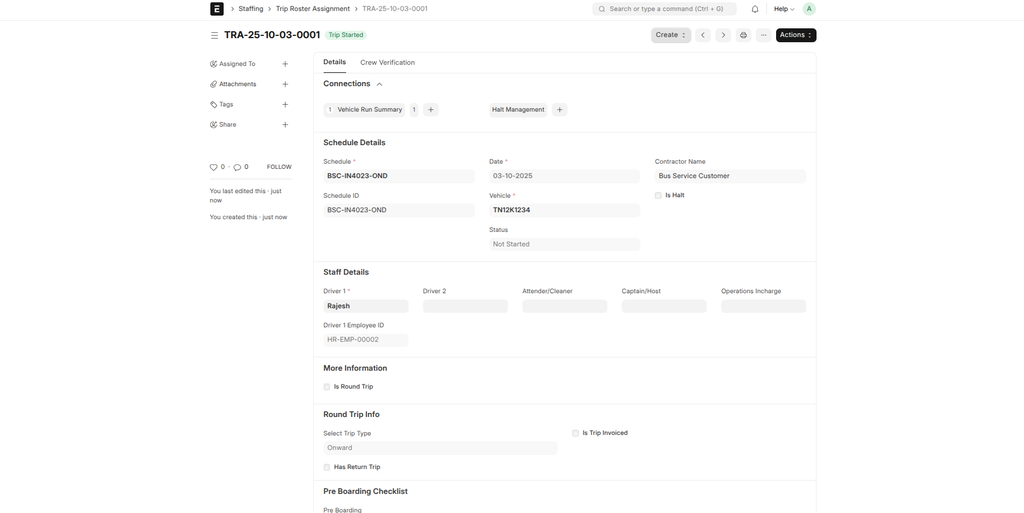
Manage the assignment through workflow states like Pending Verification, Trip Started, Trip Rejected, or Trip Cancelled. When the status changes to "Trip Started" (after verification), the system supports Vehicle Run Summary management. Use "Cancel Trip" to cancel the trip if needed.
Important Fields
| Field | Description | Required |
|---|---|---|
| Trip Schedule | Reference to the overall trip plan | Yes |
| Schedule Addition | Link to daily schedule details | Yes |
| Employee Role Assignments | Table for assigning employees to specific roles (linked from Trip Crew Member) | Yes |
| Shift Start/End | Timings for the assigned shifts | Yes |
| Availability Status | Auto-checked status for conflicts (handled by system) | No |
| Notification Preferences | Options for sending assignment alerts | No |
| Trip Status | Workflow status; changing to "Trip Started" creates Vehicle Run Summary in draft | Yes |
| Crew Verification | Verification status for driver, attendant, and operational in-charge | Yes (for start/end trip) |
Workflow Overview
The Trip Roster Assignment follows a detailed workflow to manage trip assignments:
- Pending Verification: Initial state after creation; awaiting driver or manager action. Driver can "Start Trip" after crew verification, while Fleet Manager can "Cancel Trip."
- Trip Started: Triggered by "Start Trip" action (allowed for Driver) after verifying crew members (driver, attendant, operational in-charge). This automatically creates or links to Vehicle Run Summary, indicating the trip is active.
- Trip Rejected: Result of "Cancel Trip" from Pending Verification (Fleet Manager). Requires revisions or reassignment.
- Trip Cancelled: Final cancellation from Trip Started state (Fleet Manager) using "Cancel Trip." Ends the roster assignment and may update related documents.
Roles: Driver handles starting the trip after verification; Fleet Manager manages cancellations and rejections. The system enforces these permissions.
Tips and Best Practices
- Create Trip Crew Members first for drivers and crew before assigning to rosters.
- Rely on the system's automatic conflict and availability checks to avoid manual errors.
- Always perform crew member verification before starting or ending trips to ensure compliance.
- Use the "Create VRS" button to streamline Vehicle Run Summary creation.
- Monitor workflow states closely, especially "Trip Started" to ensure Vehicle Run Summary is reviewed and finalized.
- Enable notifications to keep crew informed of assignments and changes.
- Use "Cancel Trip" judiciously to handle unexpected changes, ensuring all related records are updated.